 Slates
Every feature, one color at a time.
Eight chapters, one per slate. The pictures are the real app. The demos are small working copies you can click and type into, and nothing you do here is saved.
Color is the map.
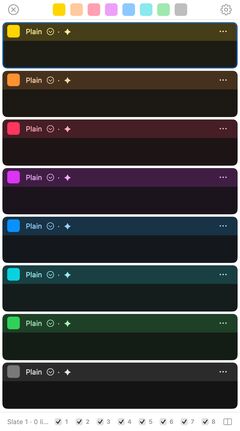
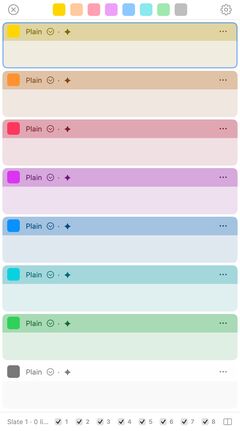
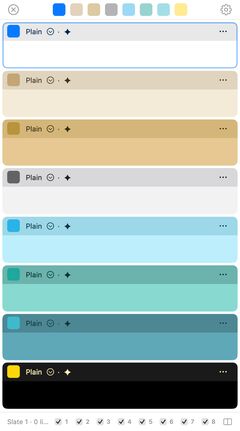
Eight slates, eight colors. You remember the yellow one, not a folder name. The color follows the slate everywhere: its header, its card, its numbered square, and the chrome around your text.
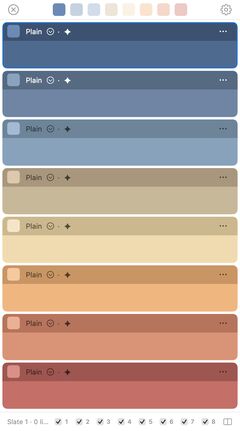
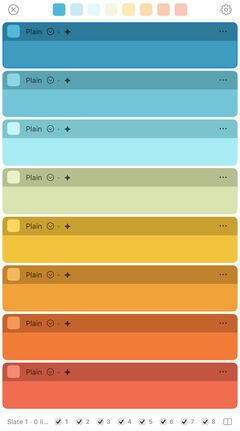
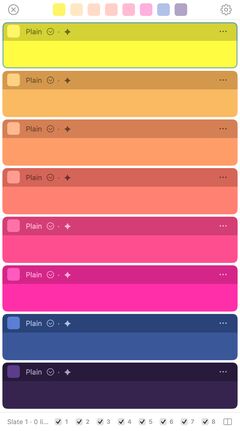
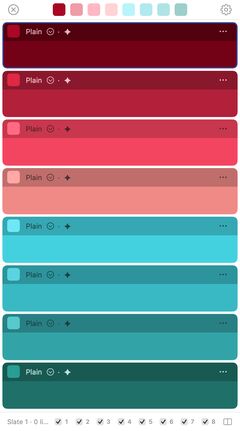
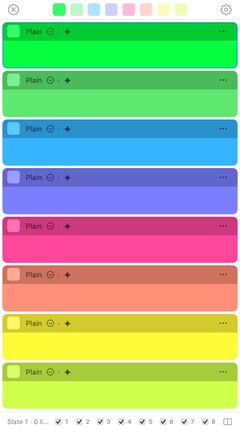
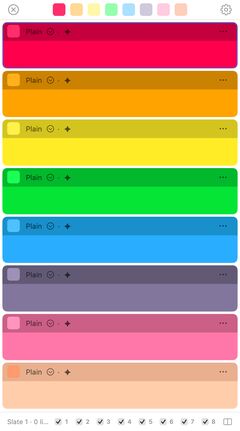
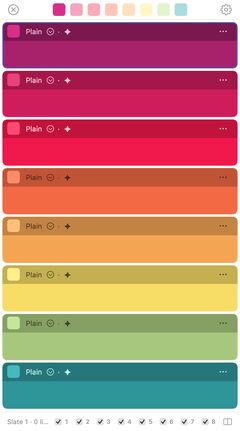
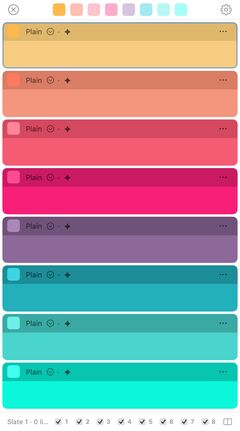
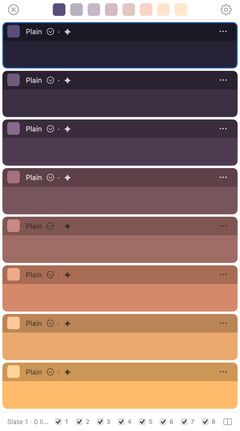
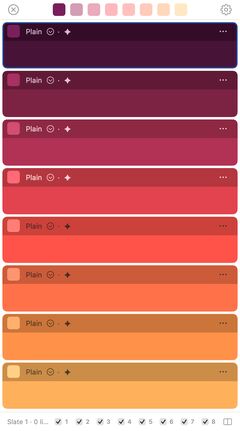
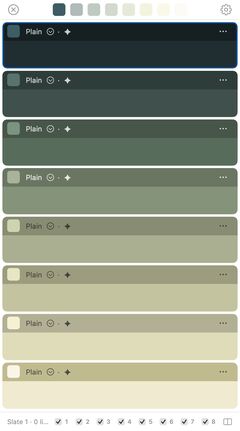
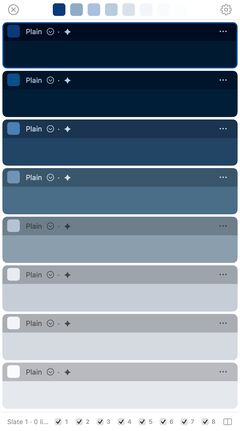
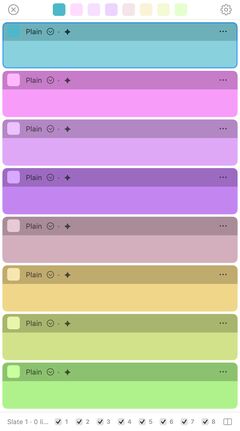
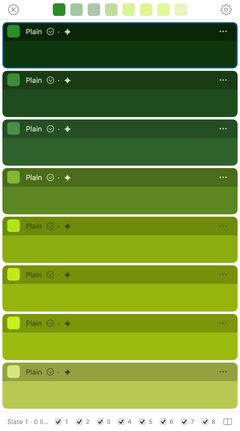
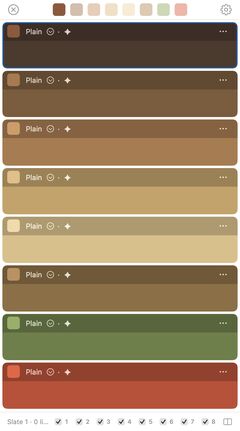
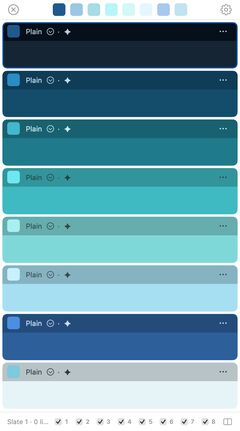
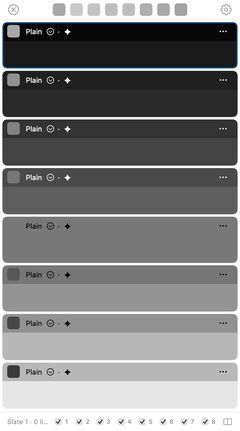
Twenty built-in palettes
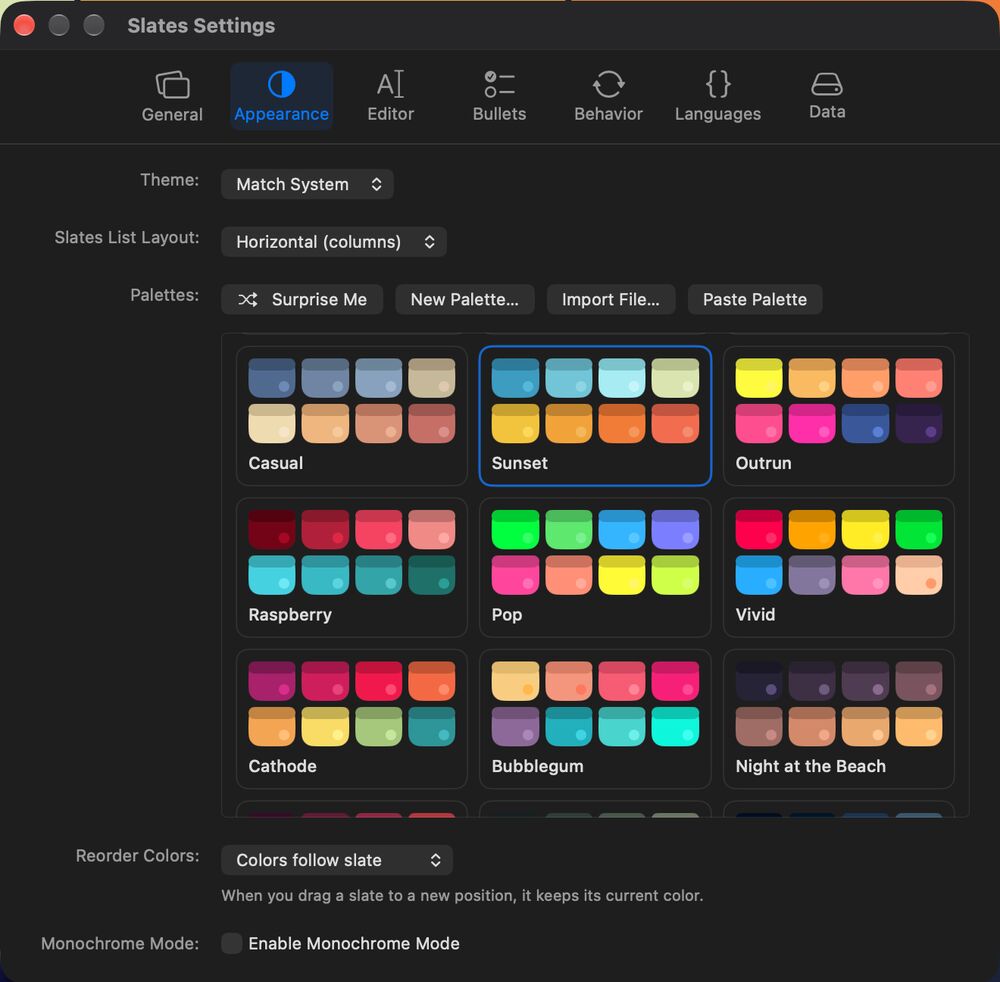
Restyle all eight at once in Settings → Appearance. Pick one below and this page wears it. It resets when you leave.
-
-
-
-
-
-
-
-
-
-
-
-
-
-
-
-
-
-
-
-


-
One slate at a time
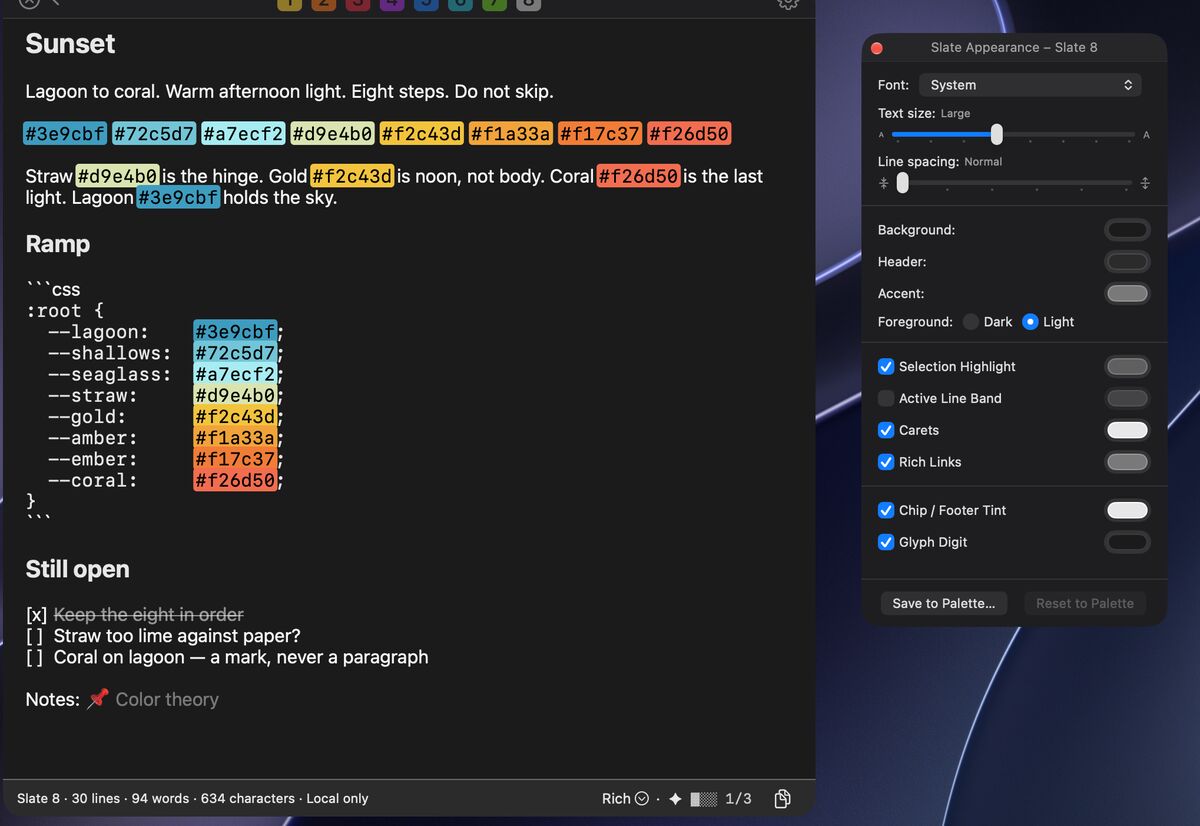
View → Slate Appearance… Command-J changes a single slate: its font, size, and line spacing, and its background, header, and accent colors. You see each change as you make it.
-
Or all eight together
Every palette has a Dark and a Light side, and follows View → Theme. New Palette… and Import File… let you make your own.
-
Reorder by dragging
Drag a slate by its header to move it. Its color goes with it, so the yellow one is still the yellow one.
-
Hide the ones you are not using
Option-Command-1 through Option-Command-8 show or hide a slate. A hidden slate keeps its text until you bring it back.


Capture, copy, clear.
Paste a door code, a tracking number, a paragraph. Copy it when you need it. When it has done its job, Copy & Clear puts it on the clipboard and empties the slate.
Slate 2 · Not saved

-
Copy
The Copy button in every header copies the whole slate. Or select part of it and press Command-C, like anywhere else.
-
Copy & Clear
In the ⋯ menu of each header. For one-time codes and anything you will paste exactly once.
-
Share
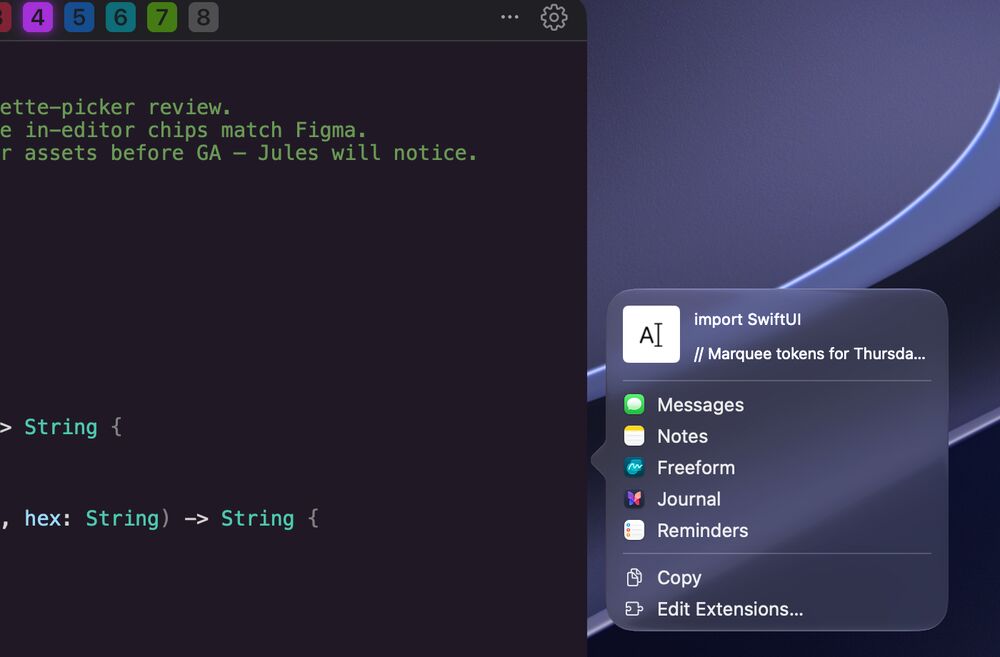
Send a slate anywhere your Mac can share to, with File → Share.
-
A limit that tells you
Each slate holds up to 100,000 characters, roughly 15,000 words. Past that, Slates keeps the first 100,000 and says so.

Plain, Rich, Code.
Each slate picks its own mode. Plain for codes and lists that must stay exactly as typed. Rich for notes with headings, emphasis, and links. Code for syntax you want colored.


Format → Switch to Plain Text Shift-Command-T Format → Switch to Rich Text Shift-Command-R Format → Switch to Code Shift-Command-C
-
Rich text you write as Markdown
Type
#for a heading and**for bold. Links stay clickable, and fenced code keeps its colors inside a note. -
Set like a dictionary
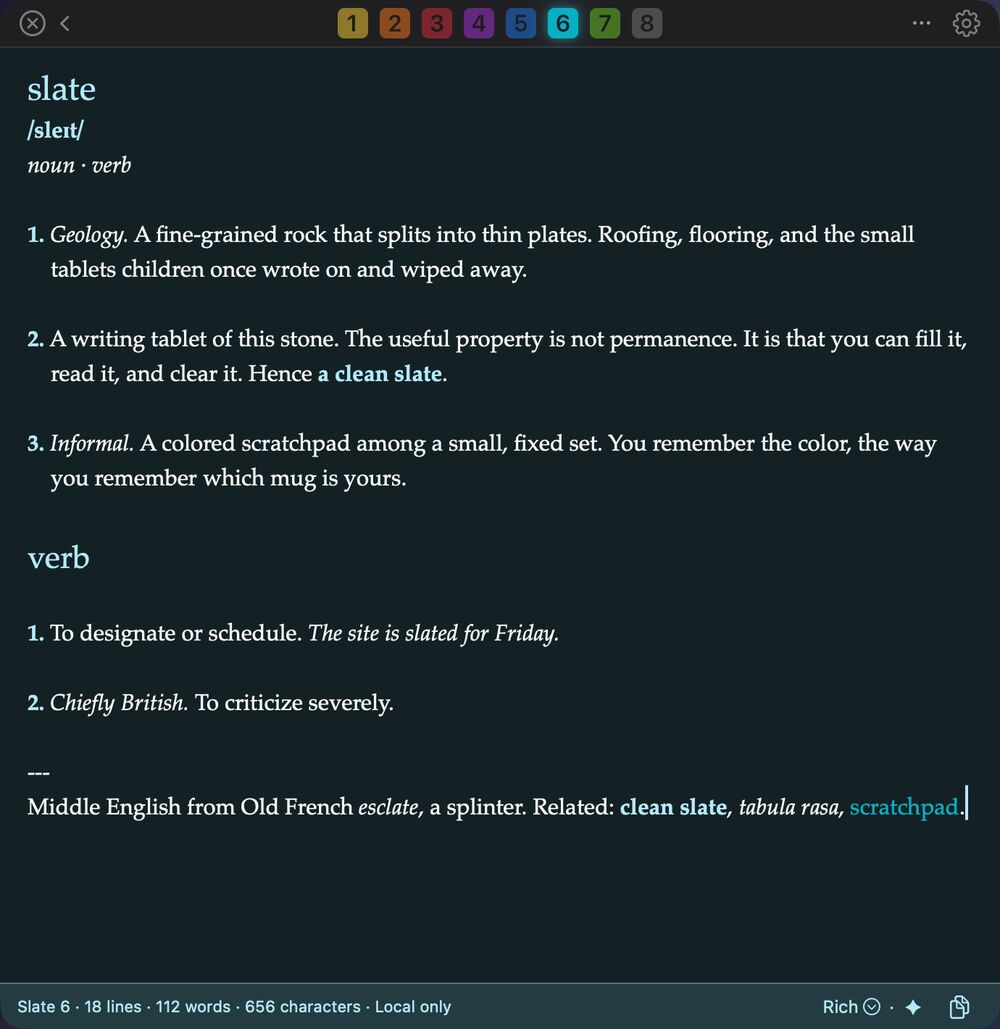
Each slate can have its own typeface: Palatino for a dictionary entry, Georgia for notes, Menlo for codes.
-
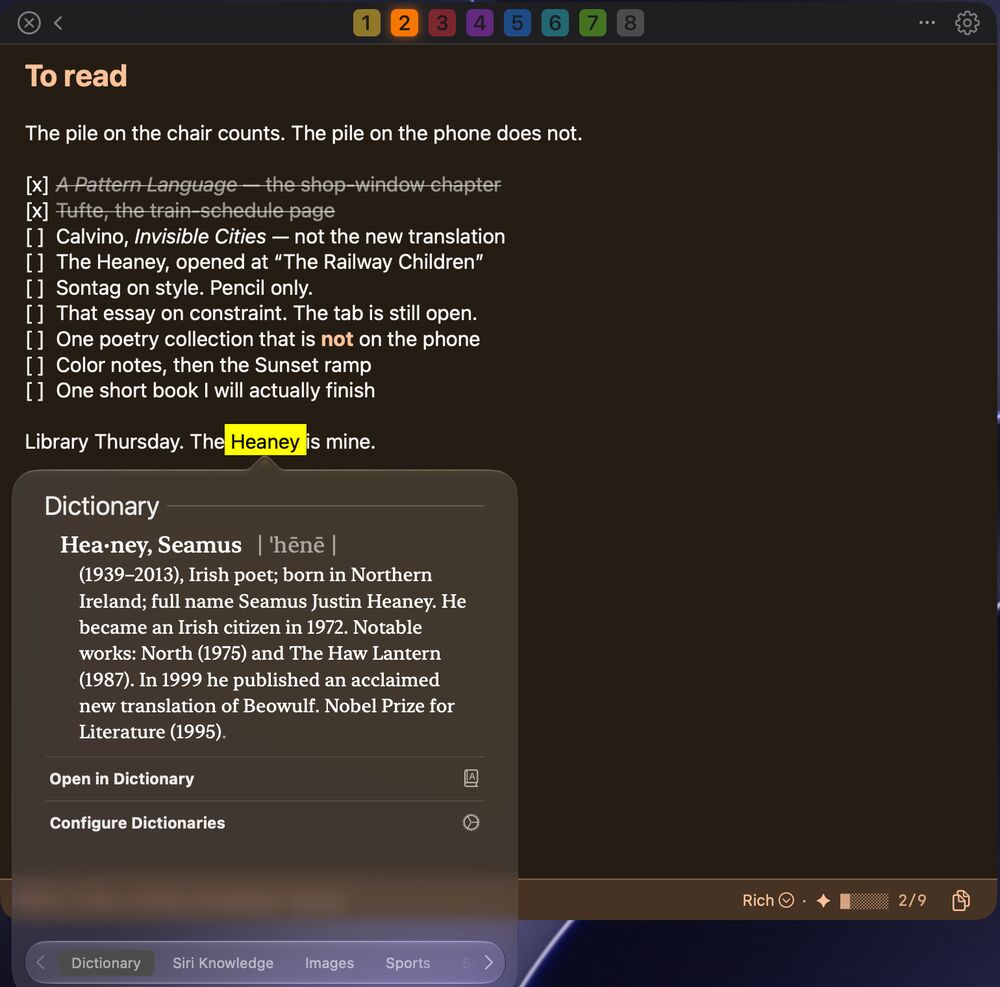
Look Up
Look up any word the way you do elsewhere on your Mac, including Control-Command-D.


Code, with the colors still on.
Code mode colors 41 languages, from Batch to YAML. Hex values get a swatch of their color right in the text. Multiple cursors work the way your editor taught you.


All 41 languages
- Batch
- C
- C++
- C#
- CSS
- Dart
- Dockerfile
- F#
- Go
- Groovy
- Handlebars
- HTML
- INI
- Java
- JavaScript
- JavaScript React
- JSON
- JSON with Comments
- Jade (Pug)
- LESS
- Lua
- Makefile
- Markdown
- Objective-C
- Perl
- PHP
- PowerShell
- Python
- R
- Razor
- Ruby
- Rust
- Sass
- SCSS
- Shell Script (Bash)
- SQL
- Swift
- TypeScript
- TypeScript React
- XML
- YAML
-
24 seconds, no sound. A Swift slate in Light: text is selected, then several lines are edited at once with multiple cursors. Multiple cursors
Option-Command-Up Arrow and Option-Command-Down Arrow add a cursor above or below. Command-D adds the next match.
-
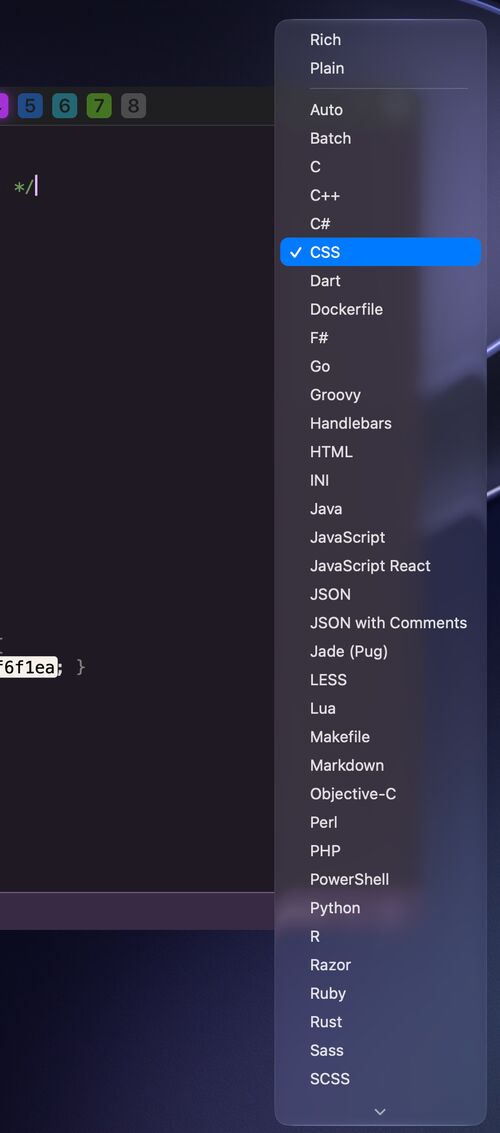
Pick a language, or let it guess
Auto recognizes most code on its own. The language menu in the slate’s footer pins one.
-
Hex color previews
Type
#ff375fand see it. Turn it off under Format → Hex color previews. -
Comments and indents
Command-Slash toggles a line comment. Command-Right Bracket and Command-Left Bracket shift lines right and left.

Smart bullets and cycles.
A bullet in Slates can have more than two states. Click it and it moves on: idle, in progress, ready, done. The header keeps count.
- ⚪ Write the about sentence
- 🟡 Proof the reading list
- 🟢 Favicon is the lagoon chip
- ✅ Remove the “coming soon” banner
- ⚪ 404: one line, then a link home
- 🟡 Print a proof
Traffic Light · click a bullet
- ◯ Finish the about sentence
- ◐ Sunset palette, name the hinge
- ● Library books, actually returned
- ◯ Print the reading list
- ◐ Second pass on type
Kanban · click a bullet
Eight cycles come built in
- Task
- [ ] [x]
- Traffic Light
- ⚪ 🟡 🟢 ✅
- Kanban
- ◯ ◐ ●
- Idea
- 💡 📝 ✨
- Priority
- ⬜ 🔵 🟡 🔴
- Review
- ❓ 👀 👍
- Progress
- 🥚 🐣 🌱 🚧 🏗️ 🚀 🏁
- Mood
- 🫠 😴 😐 🤔 ☕ 😎 🤩 🦄
-
16 seconds, no sound. Slates in Light as a horizontal strip: bullets are clicked through their states, and each header’s progress count follows. -
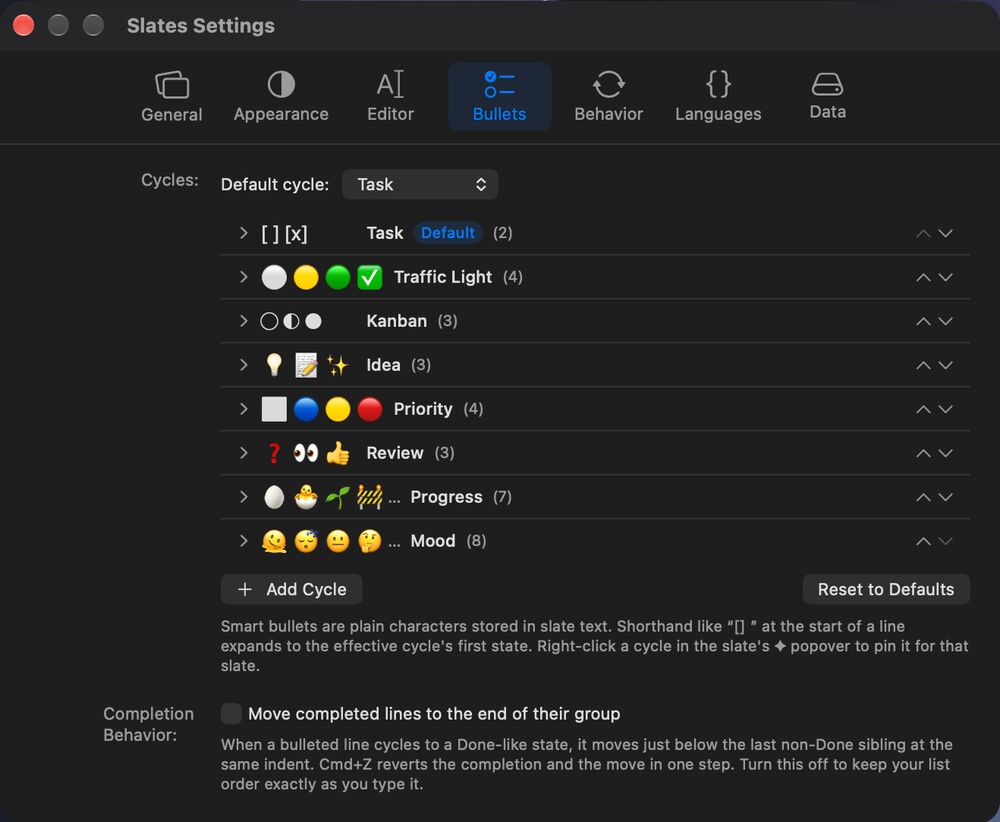
Make your own
Settings → Bullets holds up to 16 cycles of 2 to 8 states each. Typing
[ ]at the start of a line starts the slate’s cycle. -
From the keyboard
Option-Command-L moves the bullet on the current line forward, and Shift-Option-Command-L moves it back. Command-Return moves finished lines down.

Your desk, your layout.
Look at all eight, or just one. Stack them in a column or lay them out in a row. Fold the window down to its toolbar when you need the screen back.


-
3 seconds, no sound. A window collapsed to its toolbar opens to slate 1, then folds back down. Collapse to the toolbar
Window → Collapse Window Command-M folds Slates down to its row of numbered squares. Press Command-M again to bring it back.
-
44 seconds, no sound. Slates in Light moves between focus on one slate, the vertical list, and the horizontal strip. Focus and list
Command-1 through Command-8 focus one slate. Command-Backslash shows all of them again.
-
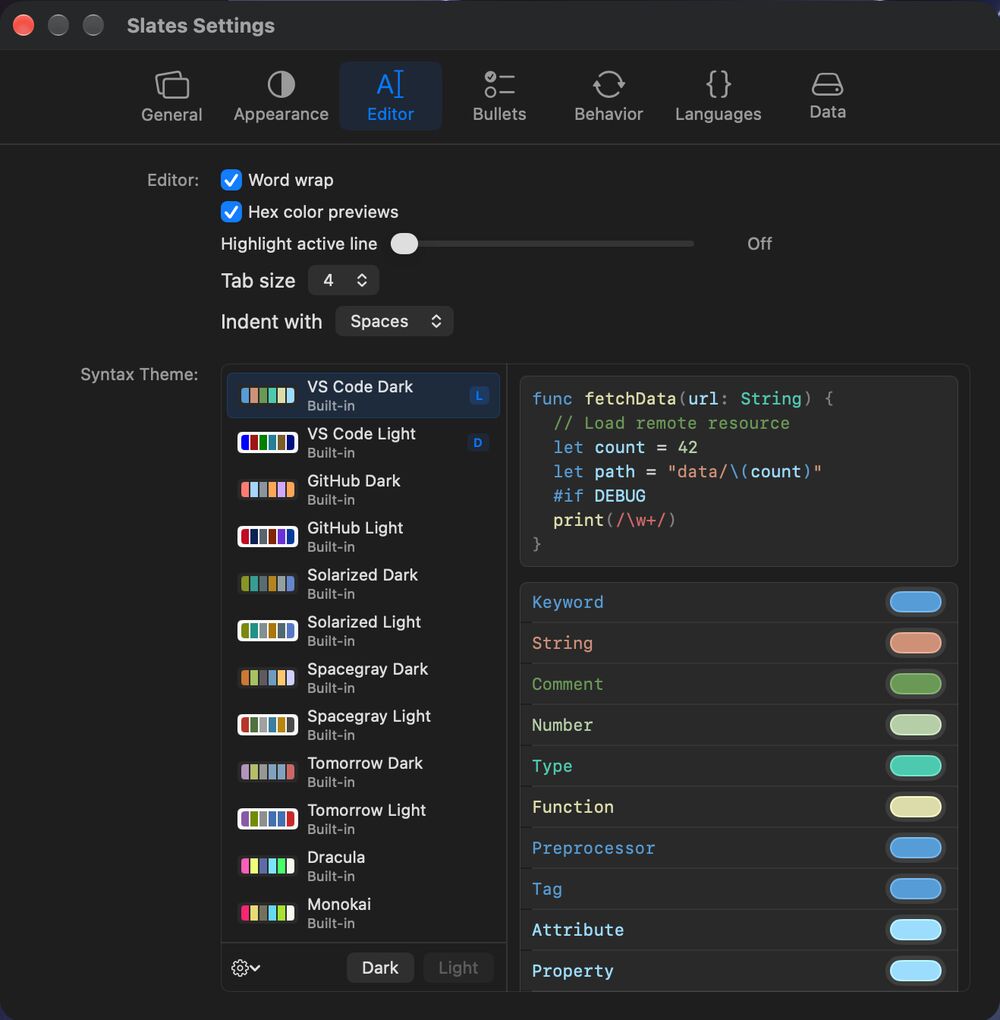
Type the way you like
Word wrap, tab size, indentation, and a dozen syntax themes live in Settings → Editor. Fonts, text size, and line spacing can be set per slate or for all of them.

Shortcuts for the desk
- Command-1 … Command-8
- Focus a slate
- Command-Backslash
- All slates
- Command-L
- Vertical list or horizontal strip
- Option-Command-R
- Fit a slate to its text, in the list
- Command-M
- Collapse to the toolbar
- Option-Command-Z
- Word wrap
- Option-Command-1 … Option-Command-8
- Show or hide a slate
- Command-J
- Slate appearance
Menu bar or Dock. Synced or not. Backed up.
Slates can live in the Dock, the menu bar, or both. Your text is stored locally by default; optional iCloud sync keeps your Macs in step. Backups happen on their own.


-
Dock, menu bar, or both
Settings → General → Activate With: a standard Dock app, a menu bar icon that opens a compact window, or both.
-
iCloud, only if you ask
Sync is off until you choose Turn On… in Settings → Data. Your text travels through Apple’s iCloud, not through us.
-
Automatic snapshots
At most once an hour while you are changing things, and again when you quit. Slates keeps the latest 40, for up to 90 days.
-
Backups you can hold
File → Save Backup… Option-Command-S writes a file. File → Restore Backup… Shift-Command-O brings one back, after asking.
Private by design.
- No analytics.
- No account.
- No Slates server.
- Stored locally by default; optional iCloud sync.
Slates has no usage tracking, no crash-reporting service, and no ads. There is nothing to sign in to. This page follows the same rule: no trackers, no cookies, and the demos above forget everything when you leave.
macOS 14 Sonoma or later · Back to the top